Groups
Groups organize chord mappings into logical categories for easier management.
Visual Organization
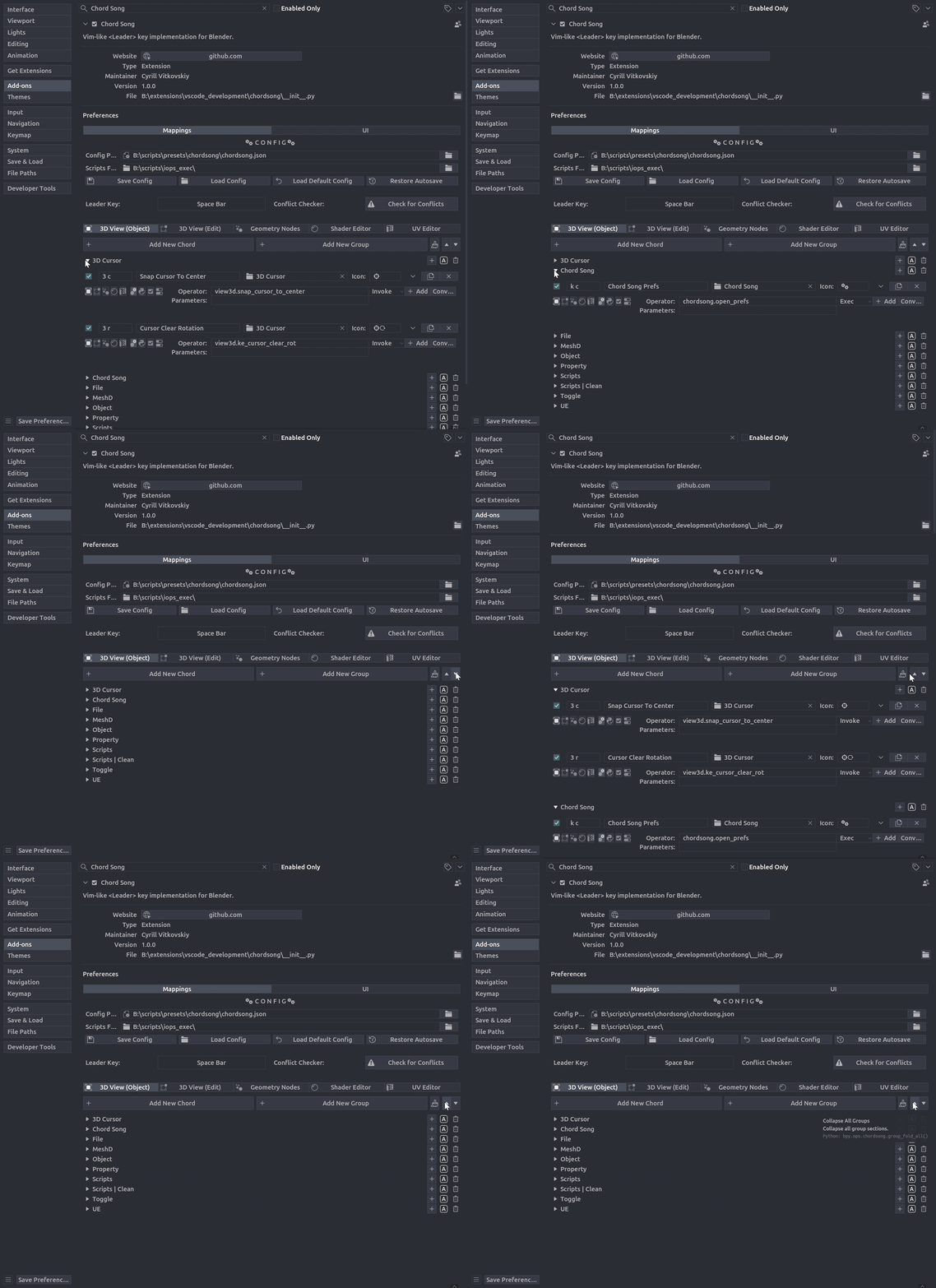
- Preferences UI: Collapsible sections let you fold/unfold groups to focus on specific categories.
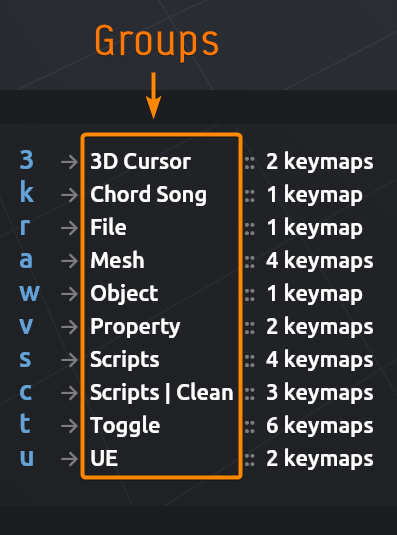
- Overlay Display: When multiple mappings share a token prefix, the overlay shows which groups contain them.
Group Management
Adding Groups
Groups can be created:
- Manually: Click Add New Group in the Mappings tab.
- Go to Edit > Preferences > Addons > Chord Song > Mappings.
<Leader> k cby default. - Click Add New Group.
- Enter a group name.
- Go to Edit > Preferences > Addons > Chord Song > Mappings.
- Automatically: Assigning a group name to a mapping creates the group if it doesn't exist. Unreal Engine style.
- From JSON: Groups are created when loading mappings from a JSON file.
Removing Groups
- Click the trash icon next to a group name.
- If the group contains mappings, choose:
- Reassign: Move mappings to another group.
- Clear: Remove group assignment (mappings become "Ungrouped").
- Delete: Permanently remove the group and all its mappings.
Deletion is Permanent
Cannot be undone. Consider reassigning mappings instead.
Renaming Groups
- Click the edit button (pencil icon) next to a group name.
- Enter the new name and optionally select an icon in the dialog.
- Click OK to confirm.
Naming Convention
Use descriptive names like "Editing" or "Navigation". Group names are case-sensitive.
All mappings using the old group name are automatically updated to use the new name.
Group Icons
Groups can have custom icons (Nerd Font symbols) that appear next to the group name in both the preferences UI and the overlay. This provides visual organization and makes groups easier to identify at a glance.
To set or change a group icon: 1. Click the edit button (pencil icon) next to a group name. 2. Select an icon from the dropdown or enter a custom Nerd Font symbol. 3. Click OK to confirm.
Reordering Groups
Groups can be reordered to control their display order in the preferences UI:
- Use the ↑ (up) and ↓ (down) arrow buttons next to a group name.
- Groups appear in the order you define, with "Ungrouped" always appearing first.
This is useful for organizing groups by frequency of use or logical workflow order.
Cleaning Up Groups
The Clean Up Groups button (brush icon) automatically:
- Removes duplicate groups.
- Removes empty groups.
Use periodically to keep groups tidy, especially after importing configurations.
Folding and Unfolding
- Fold All: Collapse all groups to show headers only.
- Unfold All: Expand all groups to show all mappings.
Ungrouped Mappings
Mappings without a group assignment are placed in "Ungrouped":
- Appears at the top of the list.
- Can be folded/unfolded like other groups.