Chord Mappings
Every chord mapping consists of the following properties:
- Chord: The key sequence (e.g.,
g g). - Label: The name shown in the overlay.
- Icon: A font icon (Nerd Fonts) to display next to the label. Can be any symbol supported by the font.
- Group: Optional category to organize your overlay into sections.
- Context: The Blender editor where the mapping is active (3D View, Shader Editor, etc.).
Adding Mappings
There are several ways to add chord mappings:
- Preferences: Manually add and edit mappings in the Chord Song preferences tab.
- Context Menu: Right-click any button or menu item in Blender and select Add Chord Mapping.
- Info Panel: Select operator history rows in Blender's Info Editor, right-click, and select Extract to Chord Mapping for batch creation.
- Copy & Paste: Copy and paste chord snippets from clipboard (see Copy & Paste Sharing).
- Import/Append: Load or merge configurations from JSON files (see Import & Export).
- Manual Editing: Advanced users can edit the JSON configuration file directly. See Configuration File Format for details.
Context-Specific Organization
The Mappings tab organizes chords by Context using tabs:
- 3D View (Object): Mappings active in Object Mode
- 3D View (Edit): Mappings active in Edit Mode
- Geometry Nodes: Mappings active in Geometry Nodes editor
- Shader Editor: Mappings active in Shader Editor
- UV Editor: Mappings active in UV/Image Editor
Each context tab shows only mappings relevant to that editor, making it easier to manage context-specific shortcuts. Mappings set to "All Contexts" appear in every tab.
Search Functionality
The search box at the top of the Mappings tab provides advanced filtering across:
- Chords: Search by key sequence (e.g., "g g")
- Labels: Search by action description (e.g., "frame selected")
- Operators: Search by operator ID (e.g., "view3d.view_selected")
- Properties: Search by property path or value
- Toggles: Search by toggle path
- Scripts: Search by script file path
Search is case-insensitive and filters mappings in real-time. Use the X button to clear the search.
Search Filters
You can use prefix filters to search within specific fields:
c:- Search only in chords (e.g.,c: gfinds all chords starting with "g")l:- Search only in labels (e.g.,l: framefinds all labels containing "frame")o:- Search only in operators (e.g.,o: view3dfinds all operators containing "view3d")p:- Search only in properties (e.g.,p: space_datafinds all property mappings with "space_data")t:- Search only in toggles (e.g.,t: overlayfinds all toggle mappings with "overlay")s:- Search only in scripts (e.g.,s: nodefinds all script mappings with "node" in the filename)
When using a filter, groups and individual mappings containing matching results are automatically expanded for easy visibility.
Collapsible Items
- Fold All: Collapse all groups to show headers only
- Unfold All: Expand all groups to show all mappings
- Individual Groups: Click the triangle icon next to each group name to expand/collapse
Sharing and Backup
- Copy & Paste: Share chord snippets with others or backup specific chords to clipboard
- Import & Export: Save and load entire configurations or groups of chords
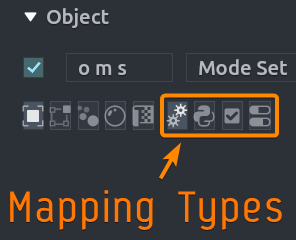
Mapping Types
Each chord mapping type has its own set of attributes and configuration options.
Mapping type can be switched by clicking one of the icons in the mapping item.