Toggle Mappings
Toggle Mappings allow you to flip properties (On/Off) using chords (e.g., toggle space_data.overlay.show_wireframe).
Unlike Property Mappings, toggle mappings flip the state each time they're activated rather than setting a fixed value.
Adding Toggles
- Preferences: Manually add and edit toggle mappings in the Chord Song tab.
- Context Menu: Right-click any checkbox or boolean property in Blender's UI and select Add Chord Mapping.
- Info Panel: Extract toggle actions from Blender's history for batch creation.
Chaining & "Sync Toggles"
You can bind multiple toggles to a single chord to create "Presets" (e.g., one chord that toggles text and statistics at once).

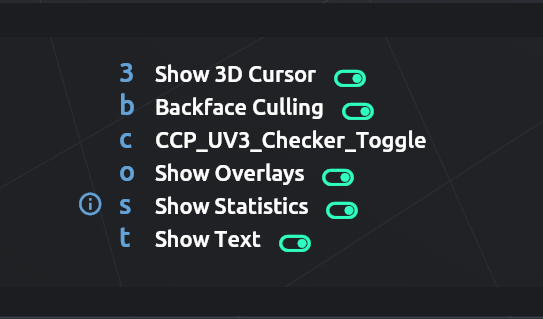
Toggle State Overlay
The state of the toggle is displayed in the overlay.
The "Checker Board" Problem
When multiple toggles are bound to one chord, they can get out of sync (e.g., Text is ON but Statistics is OFF). Pressing the chord would flip both, keeping them out of sync indefinitely.
The Sync Solution
Enable the Sync button (chain icon) on a mapping with multiple toggles to solve this:
- Enabled: When pressed, all sub-toggles will match the state of the primary (first) toggle. On the first press, everything "snaps" to a unified state (all ON or all OFF), preventing the checker board effect.
Multi-Toggle Mode
Multi-Toggle Mode allows you to execute multiple toggle mappings sequentially without closing the overlay. This is useful when you need to adjust several toggles in quick succession.
How It Works
- Hold your configured modifier key (Ctrl, Alt, or Shift)
- Execute a toggle mapping
- The toggle flips, and the overlay remains open
- The buffer reverts to the previous state, ready for the next toggle
- Release the modifier to close the overlay
Configuration
In Preferences > Chord Song > Mappings tab > Toggle Settings section, set your preferred Multi-Toggle Modifier:
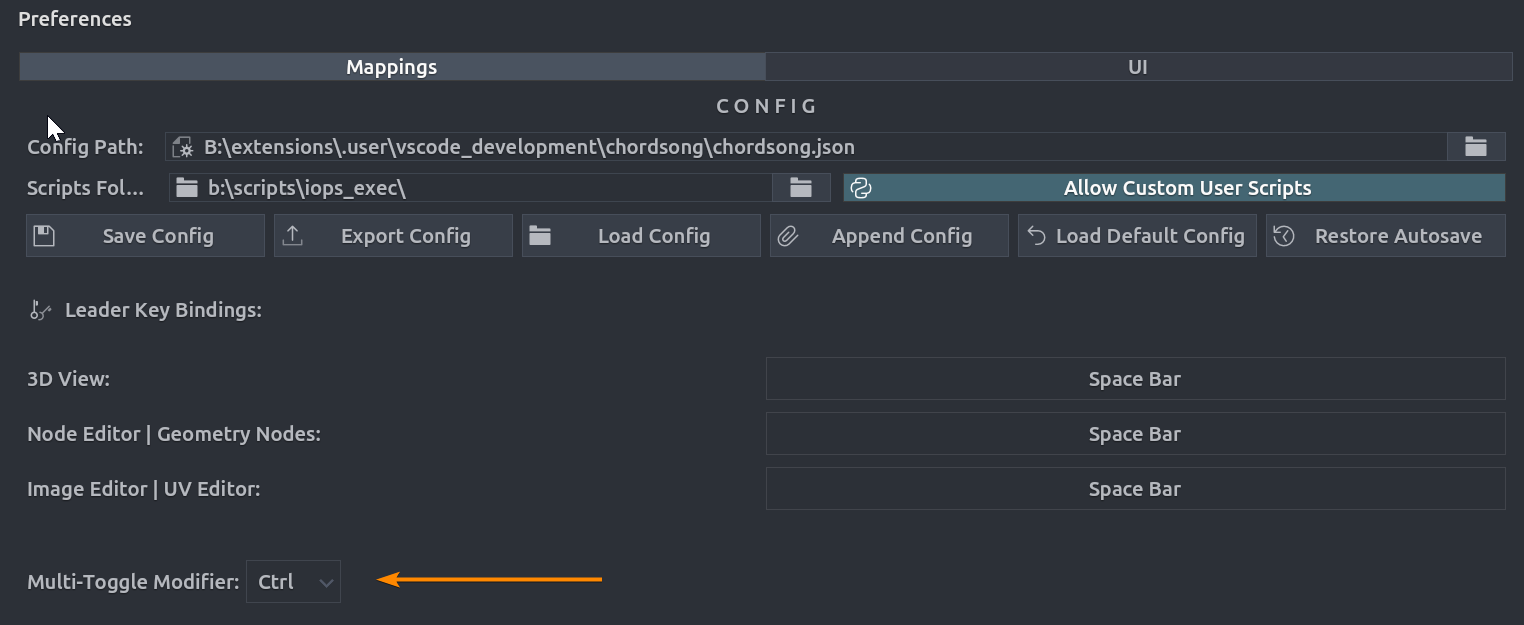
- Ctrl (default): Hold Ctrl while executing toggles
- Alt: Hold Alt while executing toggles
- Shift: Hold Shift while executing toggles
Example Usage
With a chord sequence like t 1 for wireframe and t 2 for overlays:
- Press
Space(leader key) - Press
t(toggle prefix) - Hold Ctrl and press
1→ wireframe toggles, overlay stays open att - Still holding Ctrl, press
2→ overlays toggle, overlay stays open att - Release Ctrl to close
This allows rapid adjustment of multiple visual settings without re-entering the chord sequence each time.