Scripts Overlay
The Scripts Overlay provides quick access to your custom Python scripts through a searchable, numbered interface. It scans a designated folder for .py files and displays them in an overlay similar to the main Chord Song overlay.
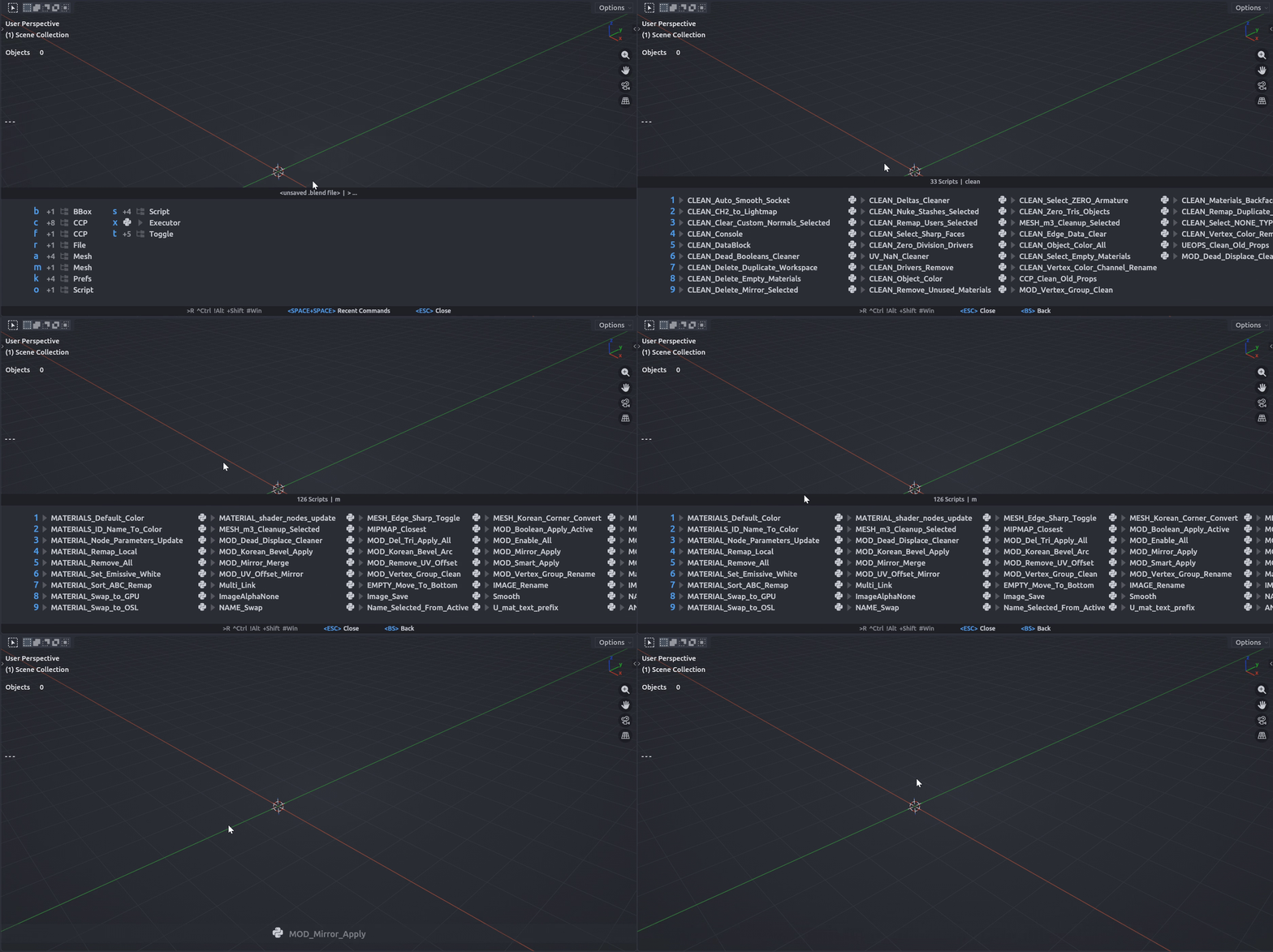
Quick Access
By default, the Scripts Overlay is mapped to <Leader> x. The operator is chordsong.scripts_overlay
Features
Numbered Script Access
The first 9 scripts are assigned numbers 1-9 for instant execution:
- Press 1-9 to execute the corresponding script
- Scripts beyond the first 9 are displayed with a Python icon () and can be accessed by scrolling or filtering
Fuzzy Search Filtering
Type letters to filter scripts in real-time:
- Letter keys (A-Z): Add characters to the search filter
- Backspace: Remove the last character from the filter
- Number keys with modifiers: Add numbers to the filter (Ctrl/Alt/Shift + number)
The fuzzy matching algorithm:
- Matches scripts containing your search text as a substring
- Requires the first character of each word to match for fuzzy matches
- Sorts results by relevance (exact matches appear first)
Script Execution
When you execute a script:
- A fading overlay appears showing the script name and Python icon
- The script is automatically added to your Recents list
- Scripts in recents show the Python icon aligned with other icons (no chord displayed)
Setup
1. Enable Script Execution
Script execution is disabled by default for security. Enable it in Preferences:
- Go to Edit > Preferences > Extensions > Chord Song
- Navigate to the Config tab
- Enable "Allow Custom User Scripts"
2. Set Scripts Folder
Configure the folder where your scripts are stored:
- In Preferences, go to the Config tab
- Set the "Scripts Folder" path to your desired directory
- The overlay will scan this folder for
.pyfiles (excluding__init__.py)
3. Add Scripts
Place your Python scripts (.py files) in the configured scripts folder. The overlay will automatically:
- Scan the folder on each invocation
- Display script names (filename without
.pyextension) - Sort scripts alphabetically
Customization
The Scripts Overlay has its own settings in the UI tab of Preferences:

Layout Settings
- Max Items: Maximum number of scripts to display (default: 45)
- Rows Per Column: Number of rows per column before wrapping (default: 9)
- Elements Gap: Spacing between icon, chord, and label (default: 5.0)
- Column Gap: Spacing between columns (default: 25.0)
- Max Label Length: Maximum characters before truncation (0 = no limit)
These settings are independent from the main overlay settings, allowing you to customize the scripts overlay appearance separately.
Usage Tips
Quick Script Execution
- Press
<Leader> xto open the scripts overlay - Type a few letters to filter if needed
- Press 1-9 to execute the desired script
Filtering Examples
- Type "transform" to find all transform-related scripts
- Type "clean" to find cleanup scripts
Keyboard Shortcuts
| Key | Action |
|---|---|
| 1-9 | Execute script at that position |
| A-Z | Add letter to search filter |
| Backspace | Remove last filter character |
| Ctrl/Alt/Shift + Number | Add number to filter |
| ESC / Right-Click | Close overlay |
Integration with Recents
Executed scripts are automatically added to your Recents list:
- Scripts appear in recents with the Python icon
- No chord is displayed for scripts in recents (only icon and label)
Security Note
The Scripts Overlay executes Python scripts from your configured folder. Always:
- Review scripts before adding them to your scripts folder
- Only enable "Allow Custom User Scripts" if you trust the scripts in your folder
- Keep your scripts folder secure and avoid executing untrusted code