Usage Statistics
Chord Song can track which operators, chords, and scripts you actually use, helping you spot workflow patterns — and, most importantly, find frequently-used operators that deserve a chord.
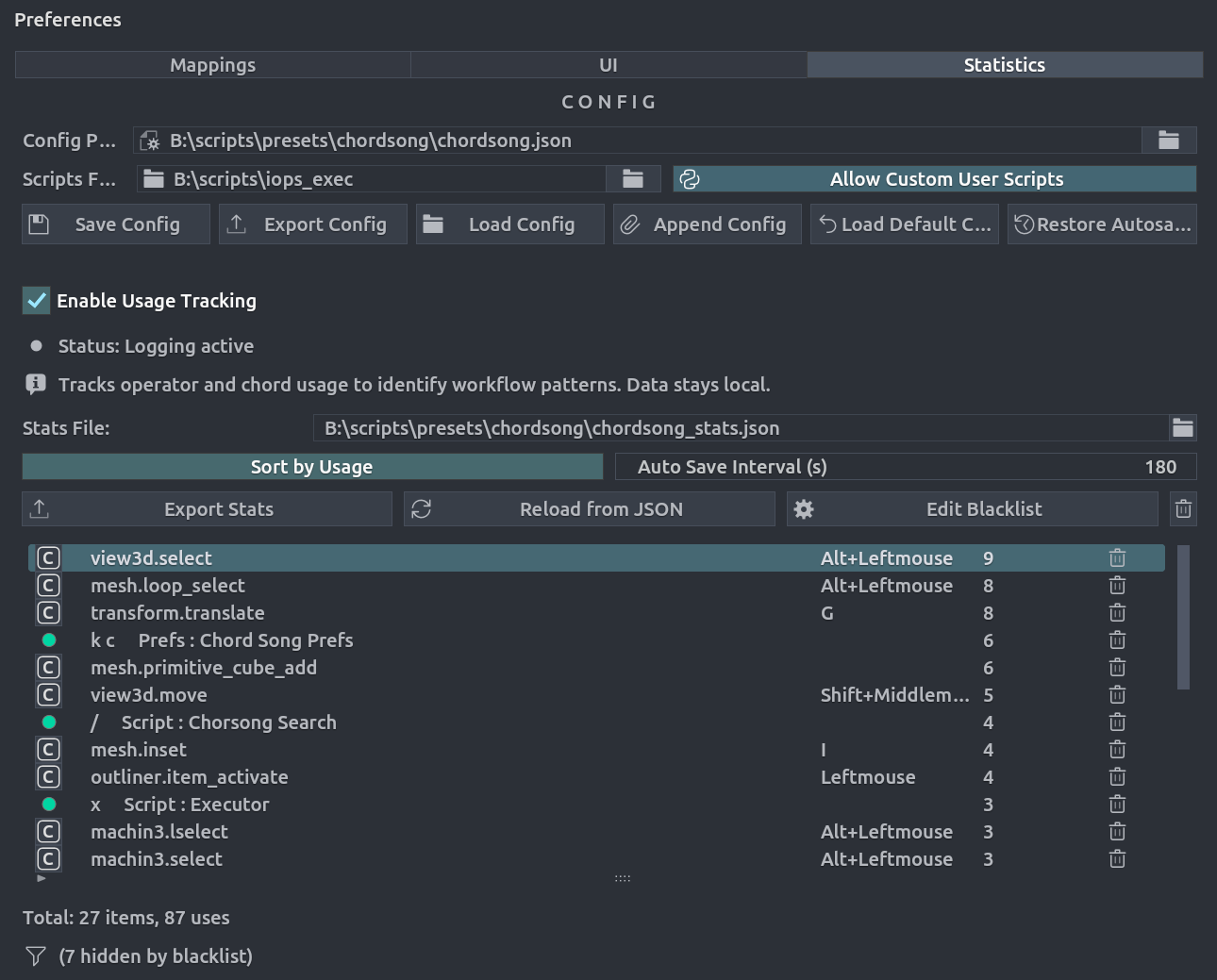
Requires Blender 5.2 or newer. On older versions the Stats tab shows a notice and tracking stays off (Blender versions without the wm.reports API can only track chord usage, not raw operator calls).
Enabling
Tracking is off by default and entirely opt-in:
- Go to Edit > Preferences > Extensions > Chord Song
- Open the Stats tab
- Enable "Enable Usage Tracking"
All data stays local — nothing is ever shared or uploaded.
What Gets Tracked
- Operators: every operator invocation reported by Blender, with a usage count
- Chords: each chord you fire through the leader key
- Scripts: custom scripts executed via chord or the Scripts Overlay
- Properties: UI property changes (
space_data.clip_end = 996.7in the Info log), counted by path with the last value remembered
Replays triggered by Chord Song itself (Recents, Search) are excluded from raw operator counts so they don't inflate the numbers.
The Statistics List
Every row leads with a type icon — operator (gear), property (RNA), chord (socket), script (file) — followed by the name, an existing hotkey (if Blender has one bound), and the usage count. Property rows show the last value you set (space_data.clip_end = 996.7). Sort by usage, or turn Sort by Usage off for an alphabetical list clustered by type.
Convert to Chord
The main payoff: operators and properties carry a convert button (C) that turns them into a chord mapping in one click. Frequently-used operators without a convenient hotkey are ideal candidates — the dialog pre-fills using the same conversion mechanism as the context menu. For properties it pre-fills a Property mapping with the path and the last value you set it to.
Blacklist
Hide noise (navigation operators, selection churn) from the list:
- Toggle the blacklist icon on any row to hide it
- Edit Blacklist opens the full list for review and removal
- A footer note shows how many items are currently hidden
The blacklist is stored inside the stats JSON file, so it travels with your data.
Storage
Statistics persist to a JSON file:
- Stats File: leave empty to use the internal extension directory, or point it anywhere you like
- Auto Save Interval: how often (in seconds) the data is written to disk (default 180;
0disables auto-save — data is then only saved on manual export) - Export Stats: write the file immediately
- Reload from JSON: re-read the file (useful after editing it externally)
- The trash button resets all collected data
The stats settings themselves (enable state, file path, interval, sorting) are stored in your addon configuration and survive autosave/restore and Save/Load Config.